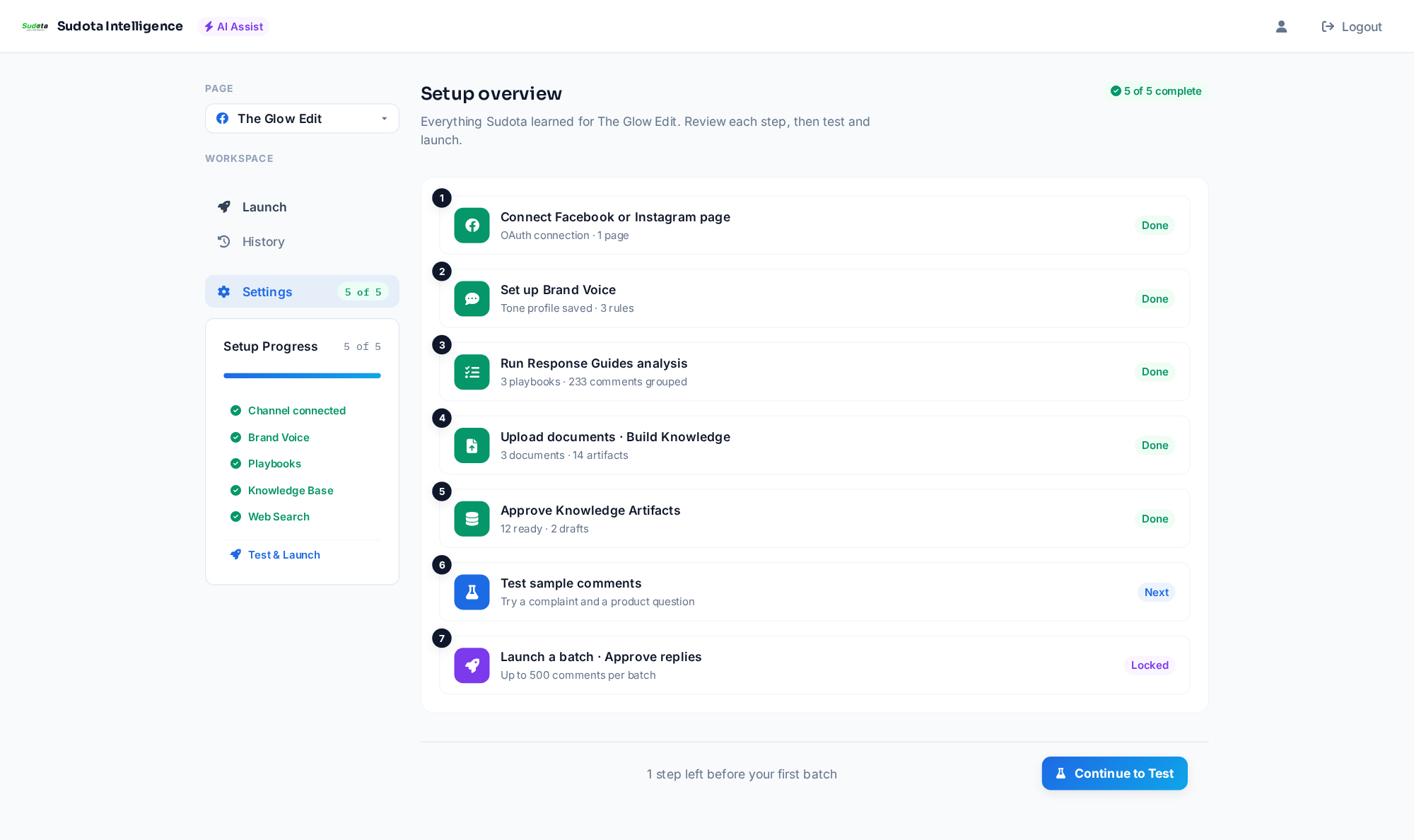
Create your account & connect your Facebook or Instagram page
Get into the dashboard and link the page you'll manage.
- Sign in with Google from the landing page.
- Open Settings → Connect.
- Click Connect Facebook or Instagram page and approve the connection (Meta Business Suite access is required).
- Select the page you manage. Each page keeps its own voice, knowledge, and reply queue.
Your page shows as "Connected" with its name in the top bar.
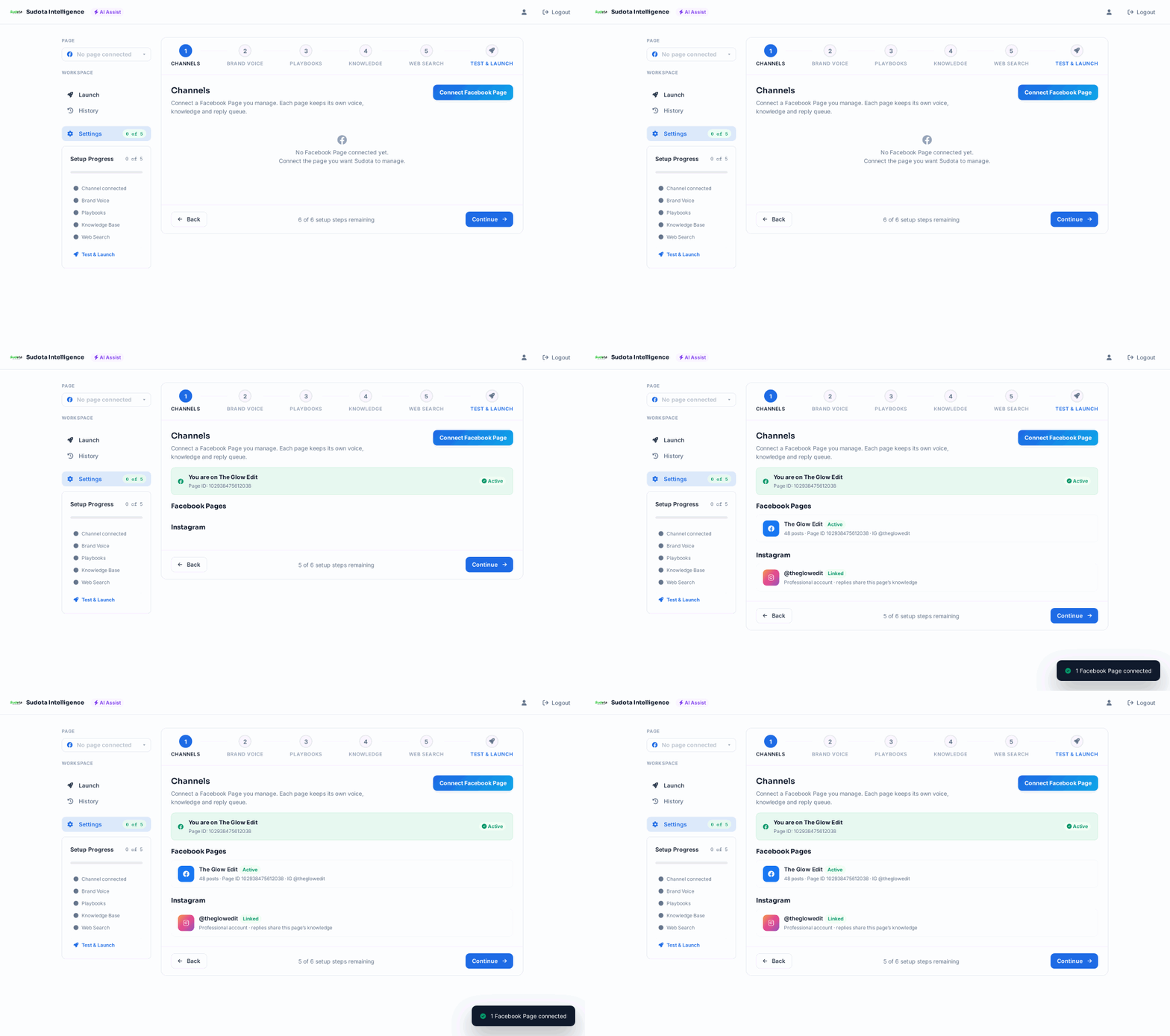
Set up Brand Voice
Teach Sudota how your team writes, so drafts sound like you.
- Go to Settings → Brand Voice.
- Import your past official replies, or paste examples of your best replies.
- Click Analyze and review the tone profile Sudota creates (greeting style, sign-offs, emoji rules, banned phrases).
- Set your language style, greeting, sign-off, emoji rules, and banned phrases.
- Click Save.
Use 10–20 real replies for the most accurate voice profile.
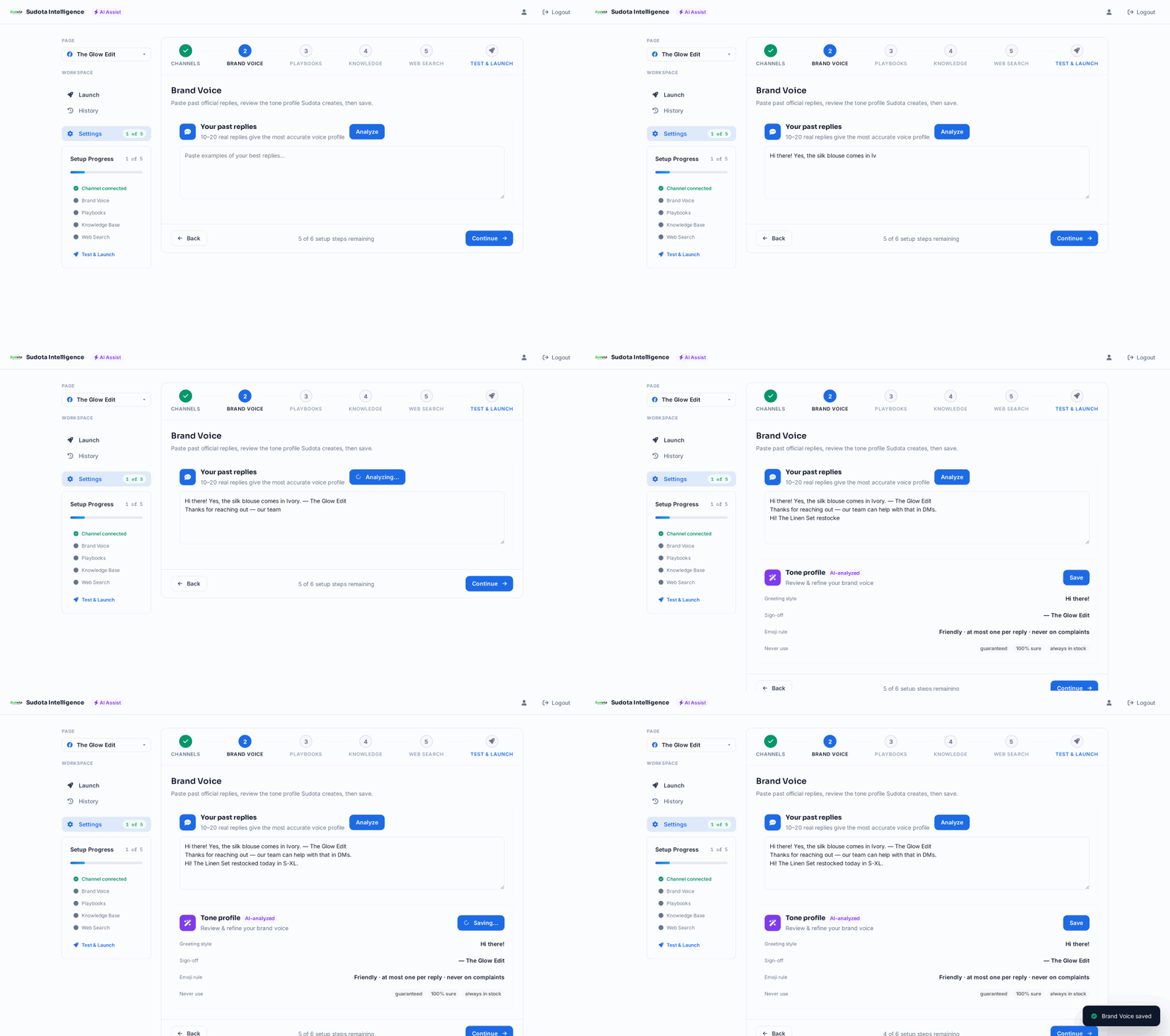
Run Response Guides analysis
Turn your comment history into rules for handling each question type.
- Go to Settings → Response Guides.
- Click Run Analysis. Sudota reads your comment history and groups similar questions by intent (stock checks, returns, promos, and so on).
- Wait for the progress bar (large pages can take a few minutes).
- Review each guide's rules and example replies.
- Edit anything that doesn't match how your team should respond, then Save.
Run this again later — guides refresh as your comment mix changes, and new intents surface automatically.
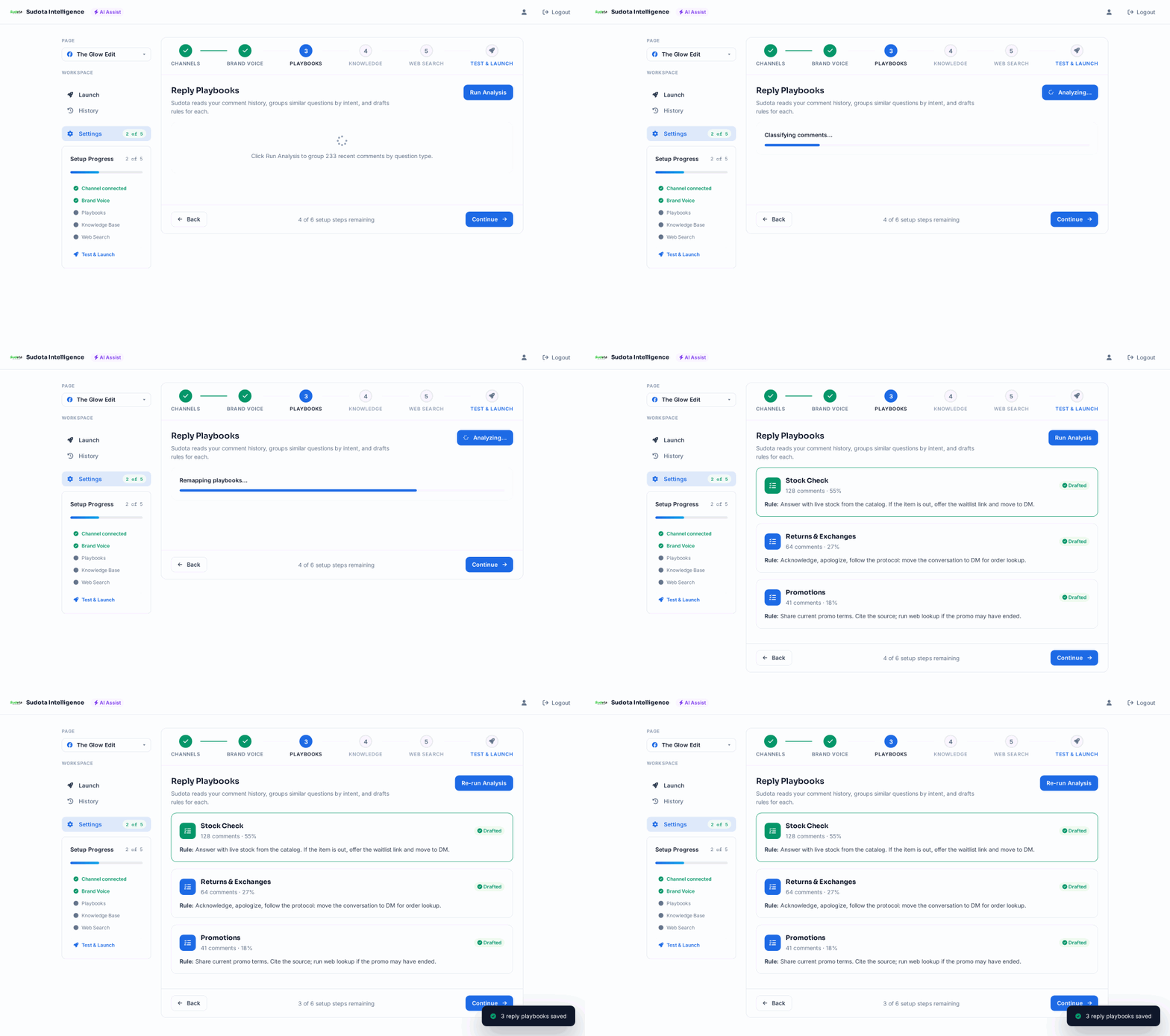
Upload documents & Build Knowledge
Give Sudota the facts it needs, from the files you already have.
- Go to Settings → Knowledge.
- Upload your PDF, Word, Excel, or other supported files (11 formats total — policies, store lists, product specs, FAQs).
- Click Build Knowledge. Sudota extracts structured Knowledge Artifacts from your documents — topics, facts, conditions, and citations.
One document can produce many artifacts. A store-locations file might become separate topics for return policy, opening hours, and location details.
Also choose your web lookup tier in Knowledge settings:
- Off — answers come only from uploaded files
- Your site only — web lookup limited to your domain
- Full web — broader live lookup for promos, hours, and stock
Uploading alone makes files searchable; Build + Approve is what turns them into structured, answer-ready knowledge.

Review & approve Knowledge Artifacts
Make sure only verified facts power your replies.
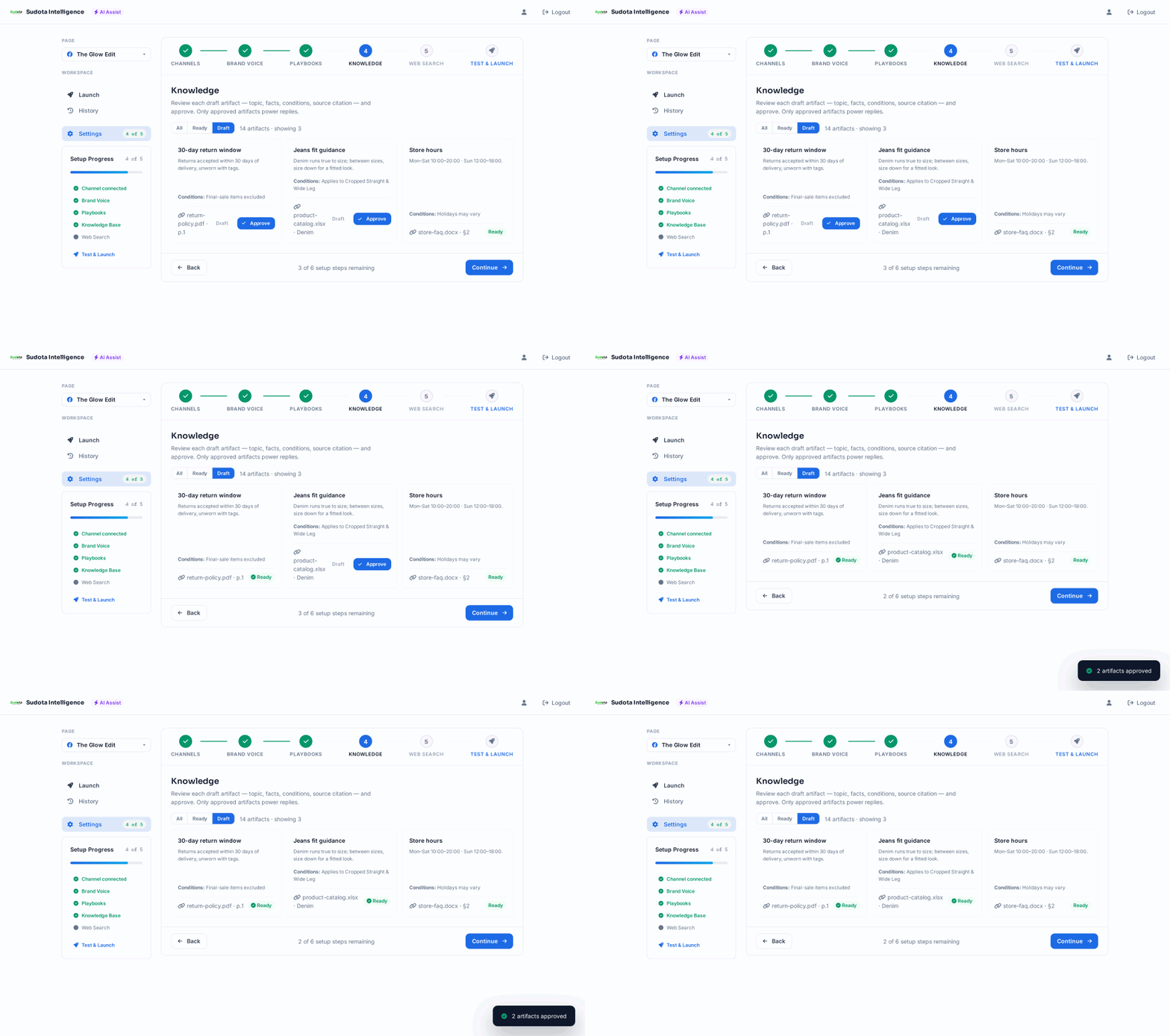
- After the build finishes, open the artifact review list.
- Read each draft artifact: Topic, Facts, Conditions, Source citation.
- Edit any fact that's wrong or unclear.
- Approve the artifacts that are ready. Only approved artifacts are used in replies.
If you update a document later, rebuild knowledge — old artifacts are automatically retired so replies never cite stale info.
Test with sample comments
Check reply quality before you go live.
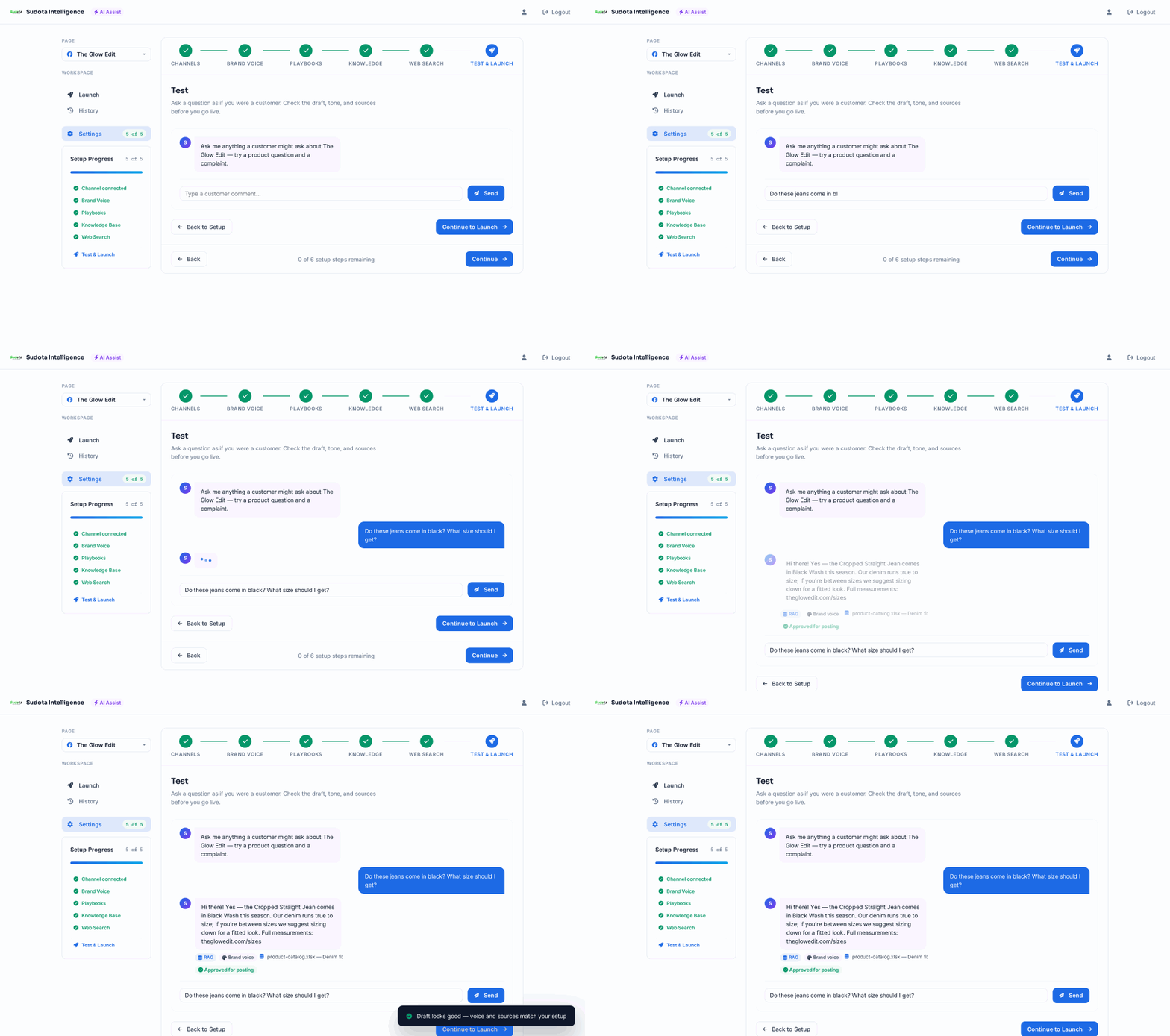
- Go to the Test tab.
- Type a realistic customer comment (try a product question and a complaint).
- Click Generate and review the draft.
- Check the sources it used — your documents and/or web results.
- Adjust brand voice or knowledge if replies feel off, then test again.
Test at least one question from each of your main question types.
Launch your first batch & approve replies
Clear your comment queue and approve replies at scale.
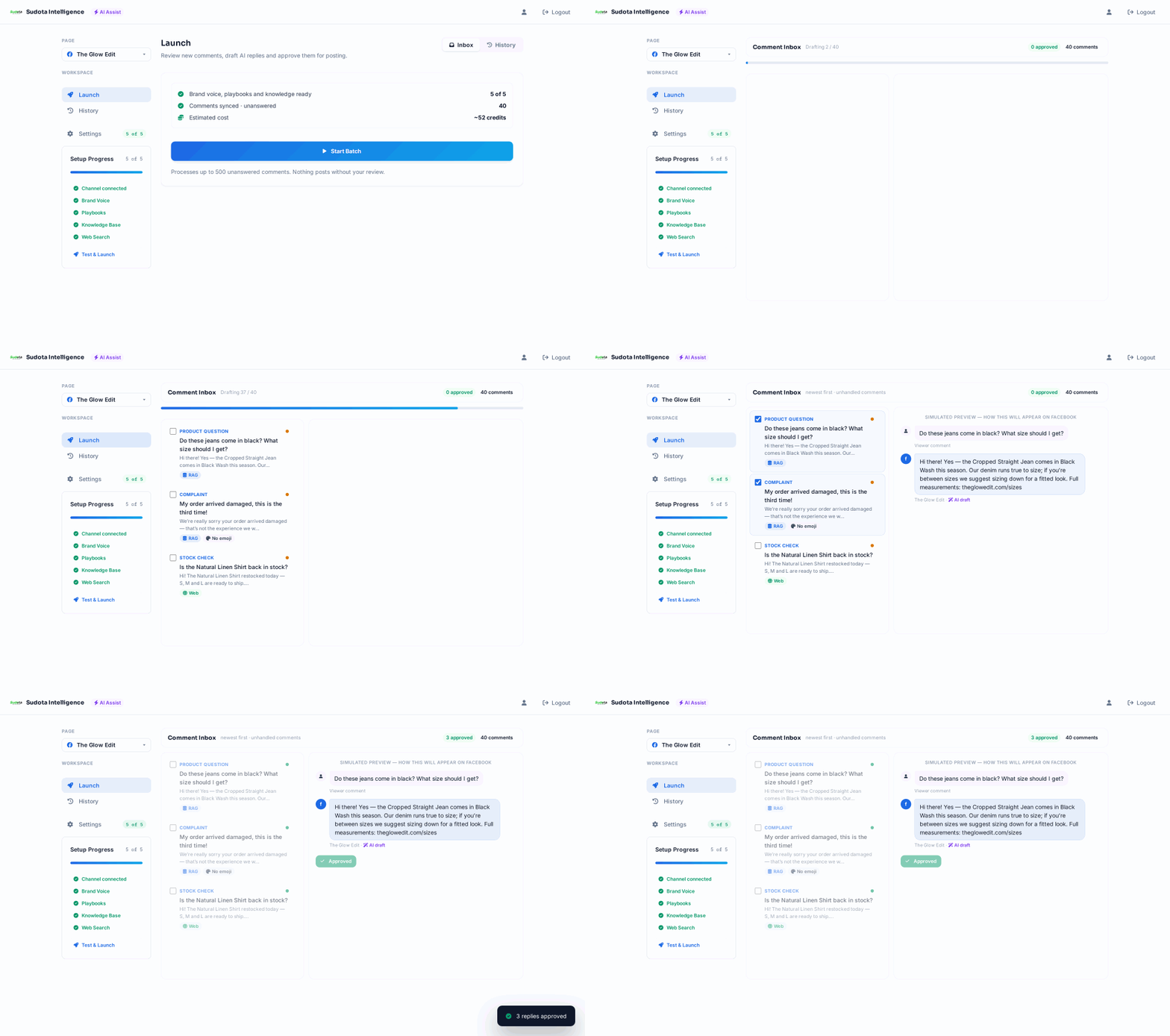
- Open AI Assist from the dashboard.
- Click Start Batch to process up to 500 unanswered comments at once.
- Watch live progress as Sudota checks each comment's question type, matches approved knowledge, runs web lookup when needed, and drafts a reply in your brand voice.
- When the batch finishes, comments are grouped by post.
- Read each draft, edit if needed, then select replies and click Approve Selected.
- Post when you're ready — nothing goes live without you. You can also edit with feedback or regenerate any draft.
Why Knowledge Base beats raw document upload
Uploading a file alone stores text chunks for search. Build Knowledge goes further — it extracts answer-ready facts your team approves before they go live.
Raw document search
BeforeFinds a paragraph that looks similar to the question. Key numbers and conditions can be buried in surrounding text.
Knowledge Artifacts
AfterStructured facts with conditions and citations. When a customer asks, AI intelligently matches their wording to the right facts — even when they phrase it differently.
- One document → many topics — a store guide becomes separate artifacts for hours, returns, and locations
- Human review — drafts stay in review until you approve them
- Compact, precise facts — replies use curated facts instead of dumping long excerpts
- Source citations — every fact traces back to a file and page
Common mistakes to avoid
-
Skipping Brand Voice — without it, drafts sound generic.
-
Uploading without building — uploads are searchable, but Build + Approve is what creates answer-ready knowledge.
-
Never updating knowledge — rebuild after document changes so stale facts retire.
-
Going live without testing — always test a few question types first.